Installation guide
Add an AI chatbot to your Drupal site
With the Header and Footer Scripts module you paste one line in your site's settings, with no changes to your theme, and your chatbot answers your visitors from your own content, 24/7, in their language.
Step 1
Create your chatbot
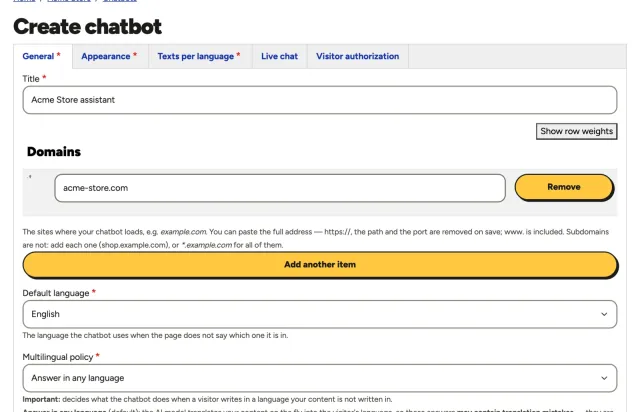
Give it a name and the domain of your website. The chatbot only loads on the domains you list, so copying its script to another site does not work.
Step 2
Add what it should know
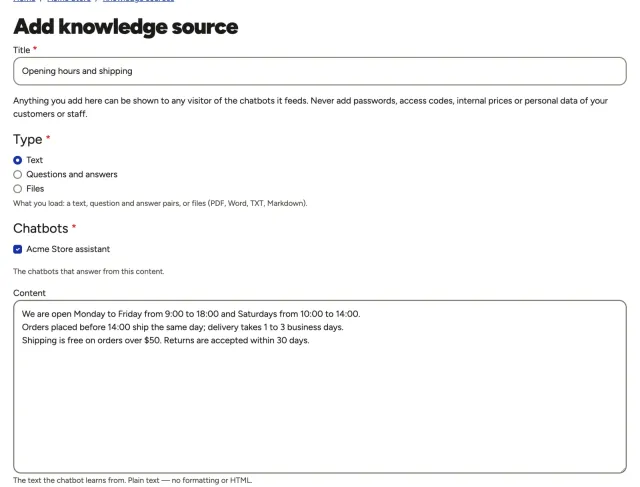
Paste texts, write questions and answers, or upload PDF, Word, TXT or Markdown files: your hours, policies, services, prices. Your chatbot answers only from this content, in your visitors' language. As soon as you create the chatbot, the panel brings you here.
Step 3
Copy your installation script
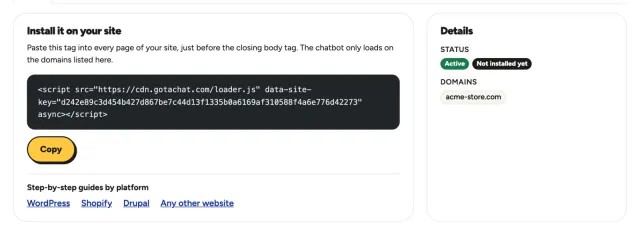
When you save your first knowledge source, the panel takes you to your installation script: one line with your chatbot's key. Click Copy. You can come back to it anytime from your chatbot's page.
Step 4
Add the Header and Footer Scripts module
Drupal 10 and 11 add modules with Composer, so whoever maintains your site runs:
composer require drupal/header_and_footer_scripts
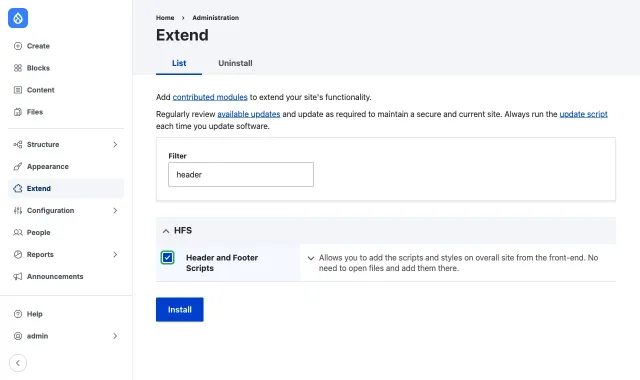
Then, in Extend, filter by header, check Header and Footer Scripts and click Install. It is the module on drupal.org for Drupal 8 to 11, covered by Drupal's security team.
Step 5
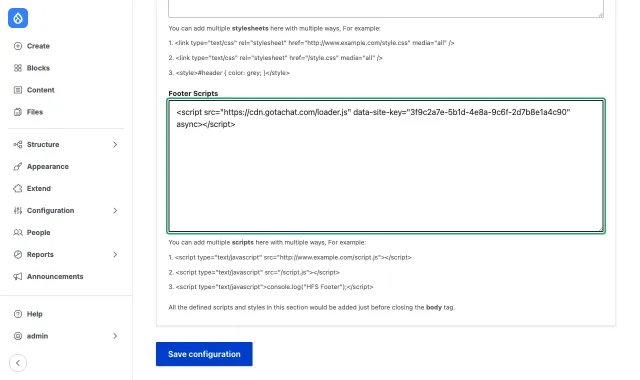
Paste it in Footer Scripts and save
Go to Configuration → Development → Header Footer Scripts and open the Footer Scripts tab. Paste your script in the Footer Scripts box (not in Footer Styles) and click Save configuration.
Then clear the cache in Configuration → Development → Performance → Clear all caches, and open your site in a private window.
Questions
Drupal questions
My site uses Acquia Site Studio (formerly Cohesion)
Site Studio has no setting of its own for a script on every page: Acquia's documentation adds JavaScript in the site's sub-theme or attached to a custom component, which is a developer's job. A Site Studio site is still Drupal, so the simplest way is this same module: steps 4 and 5 work the same.
My Drupal site is multilingual
One script serves every language. The widget reads each page's language from <html lang>, which Drupal already sets, and shows that language's texts from your chatbot's Texts per language.
I saved it, but the chatbot does not appear
Clear Drupal's caches and any cache in front of your site (Varnish, a CDN). If your site sends a Content Security Policy, allow cdn.gotachat.com and api.gotachat.com. Check that your site's domain is in the chatbot's Domains.
Can I add it without a module?
Yes: a developer can add it to your theme, before </body> in its html.html.twig. It then travels with the theme's code; the module keeps it in the site's settings instead.
This is a guide, not a guarantee: menus, names and steps can change with your platform's version, your theme and the plugins or modules installed on your site, and some of them can block or delay scripts. If something looks different or the chatbot does not appear, the support assistant in your panel can help you.